1. Preparations
RUPA Claw host and power
supplyUSB mouse
USB keyboard
HDMI monitor
HDMI cable
Power adapter
Network cable
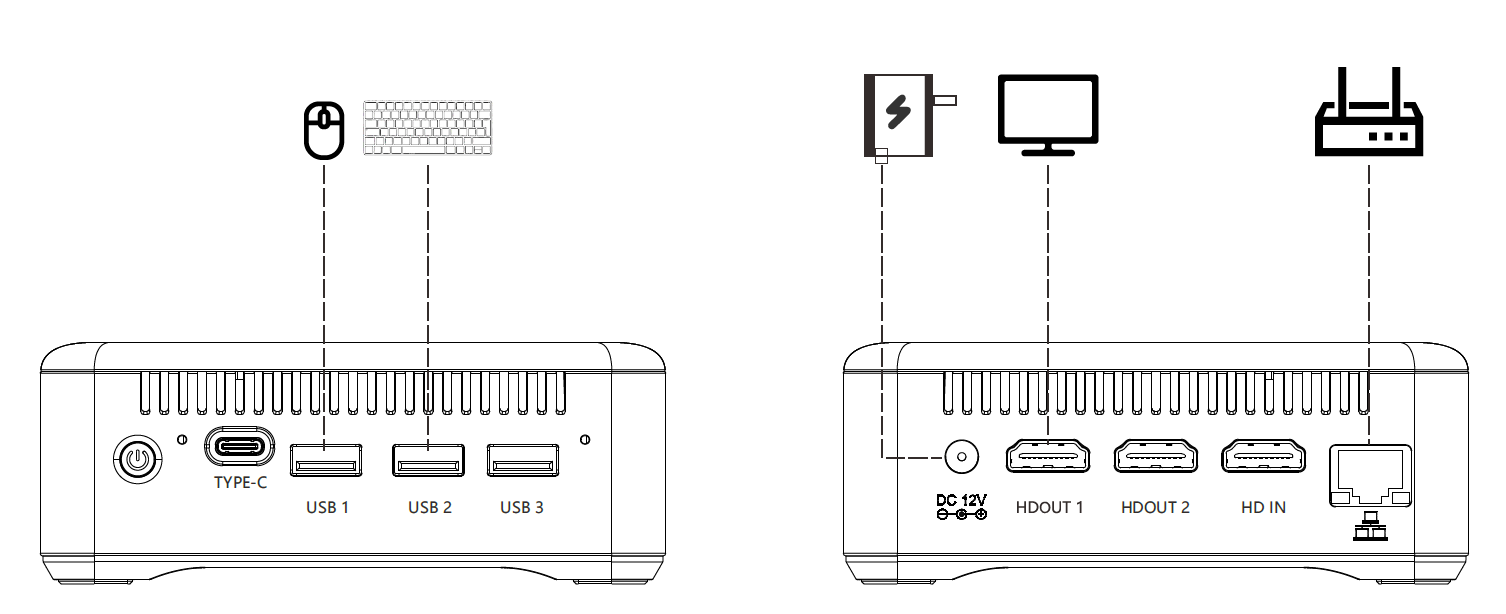
Connect the monitor, keyboard, mouse and network cable to the RUPA Claw host as shown in the figure, then connect the power supply.
2. Log in to Desktop
Default username: blueberry
Default password: blueberry
3. Install Openclaw & Kimi K2.5
New accounts have no balance. Please complete organization authentication first. You will receive a ¥15 free voucher after authentication. It is recommended to top up over ¥50 and upgrade to Tier 1 for a smoother experience. Go to Top-up (opens in a new tab)
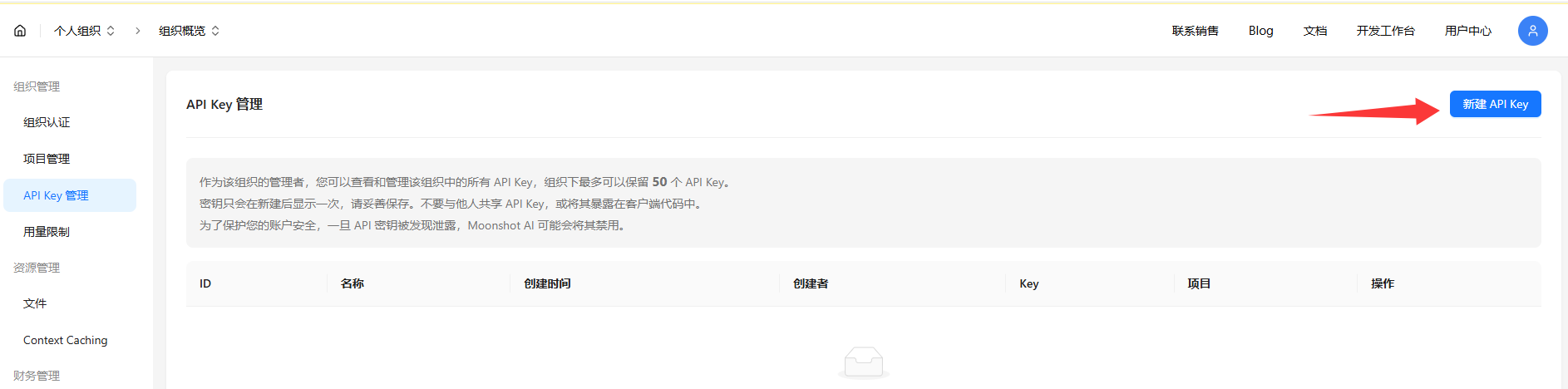
Create and copy your API key: Go to Create (opens in a new tab)
Run the following commands in the terminal. Please execute them to upgrade OpenClaw even if it is already installed.
Version Note: It is highly recommended to upgrade to version 2026.2.3 or above. Starting from v2.3, OpenClaw fully supports selecting the Kimi K2.5 model on domestic open platforms.
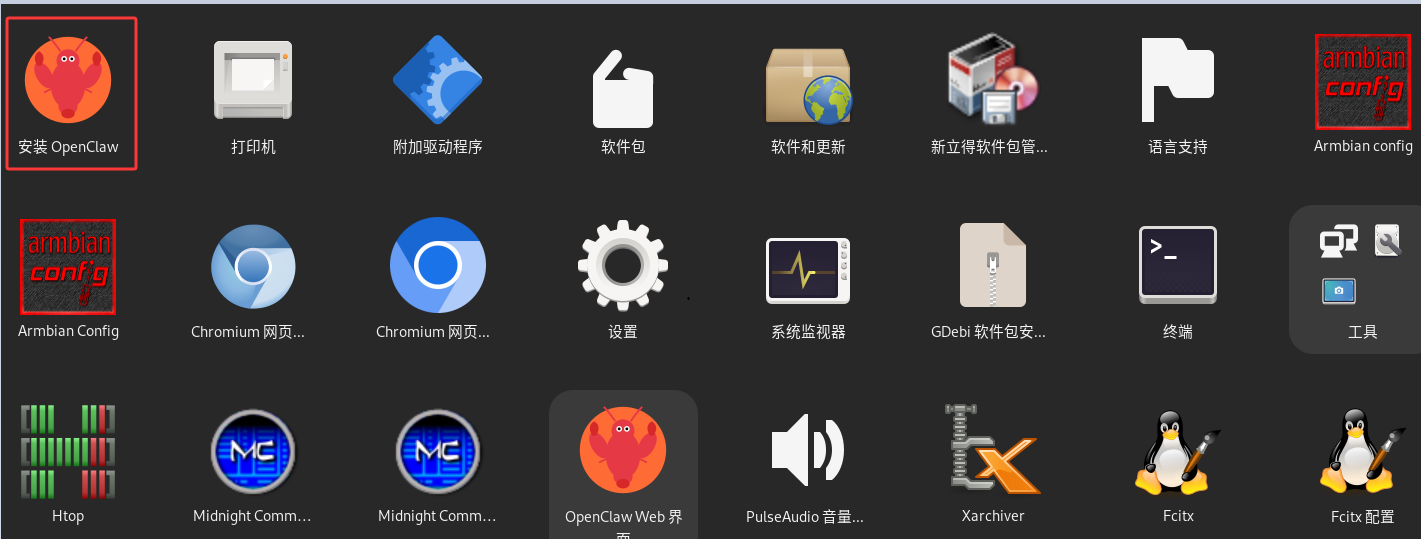
Go to the desktop.
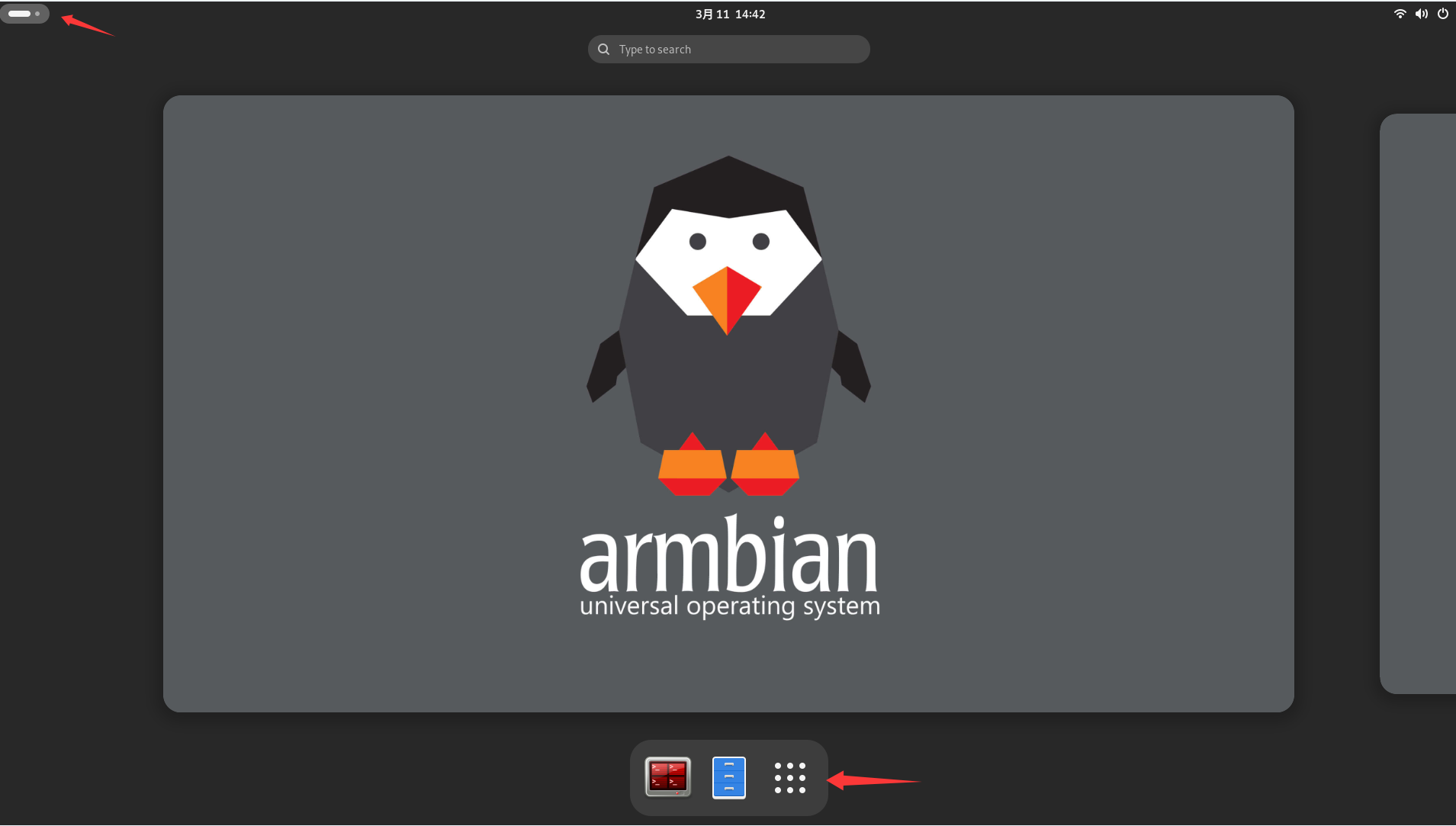
Launch the application and complete one-click installation.
Installing automatically. Please wait 10 to 30 minutes depending on network conditions.
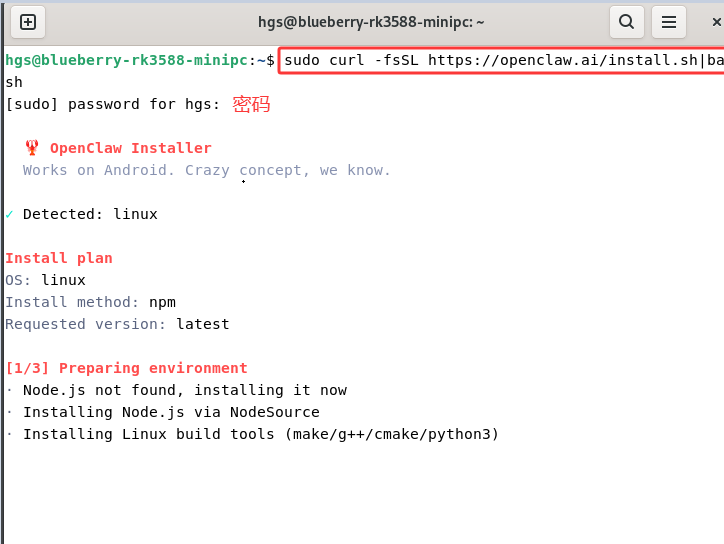
Visit the official OpenClaw website for more information: https://openclaw.ai/ (opens in a new tab)
If the installation is successful, you will see the following prompts:
Select [yes] to continue the installation.
:Choose the QuickStart option.
Step 1: Model.auth provider → Select Moonshot AI (Kimi K2.5)
Step 2: Model AI auth method (Kimi K2.5) → Select Kimi API key (.cn)
Step 3: Enter Moonshot API Key (.cn) → Enter your API Key
Step 4: Default model → Keep the current selection (moonshot/kimi-k2.5)
You will then see options for selecting a chat tool. You can choose [Skip for now].
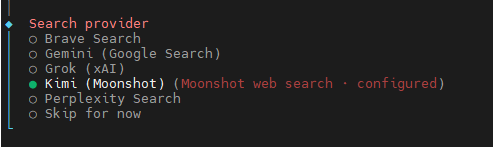

For other configurations such as Gateway Port, keep the default value 18789. Select npm or other options for Skills and package manager, and choose Yes for all remaining items.
You may skip the Skills section, or use the space bar to select required skills.
Select no for other API keys if you do not have them.
Enable the last three hooks for content guidance logging and session recording.
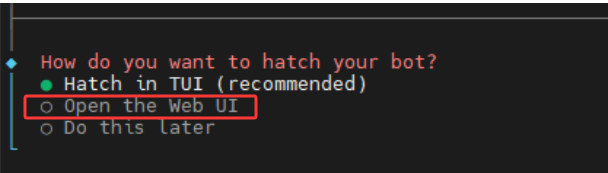
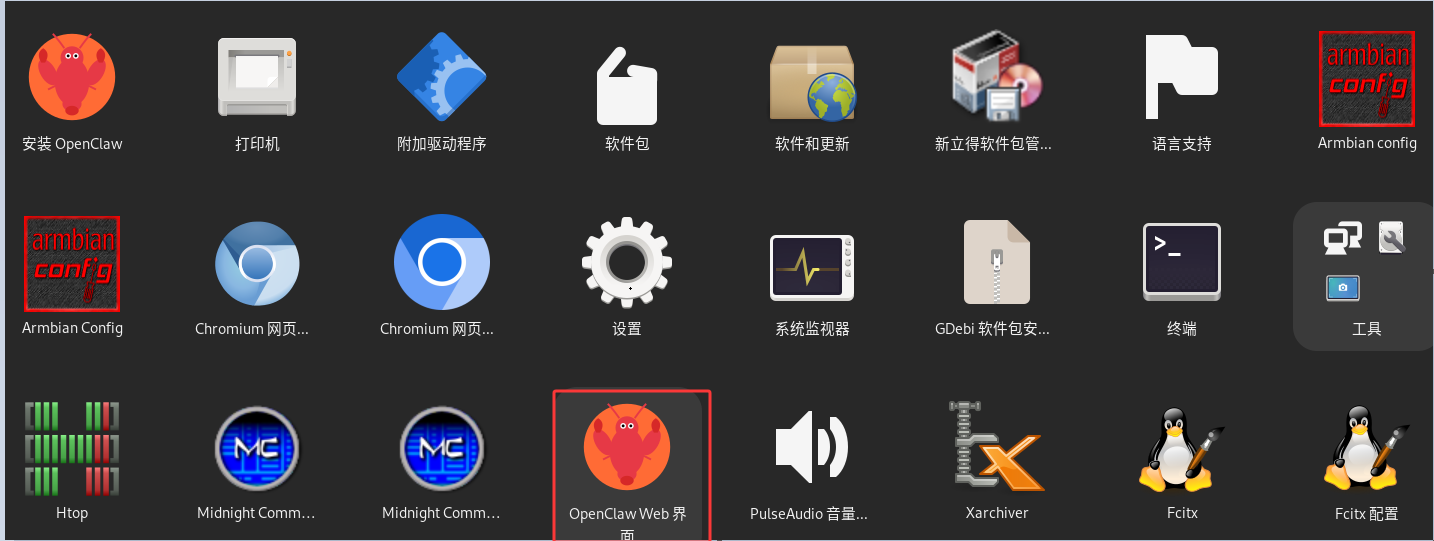
After installation, exit and return to the application. Select Openclaw Web to launch it.
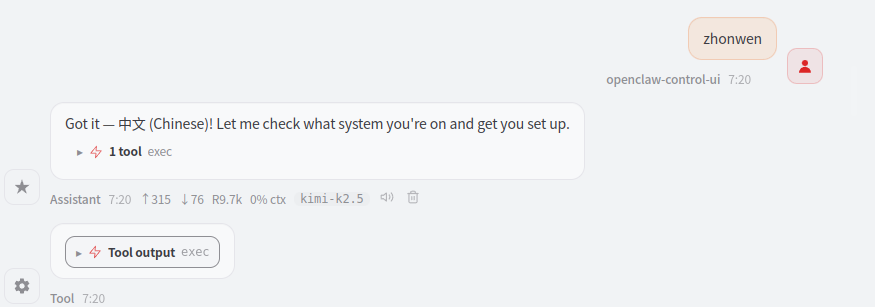
You can switch the language to Chinese
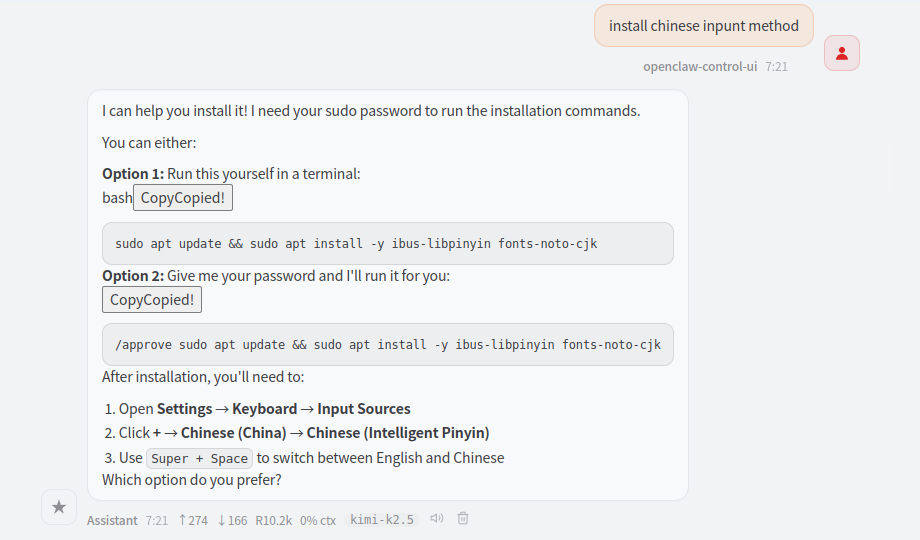
install Chinese input method
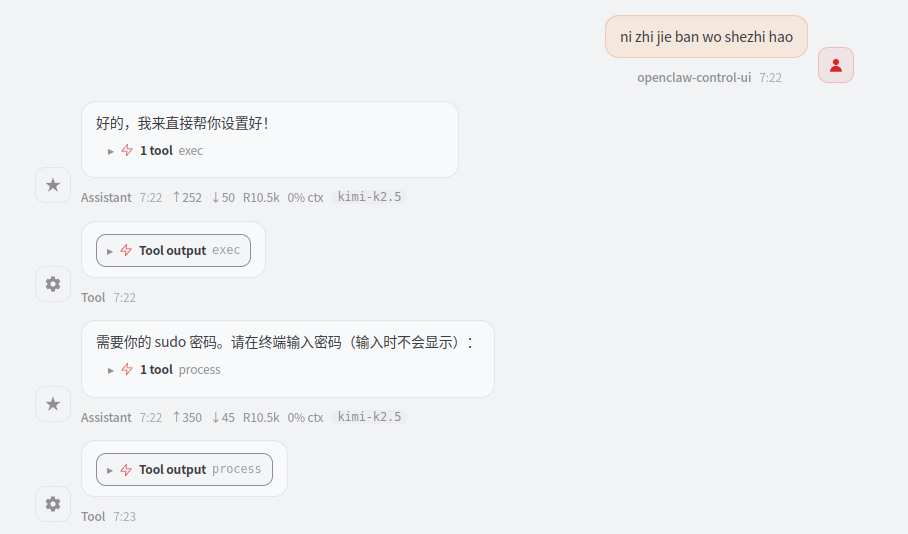
Settings will take effect after power cycle and reboot.
4. Troubleshooting for Installation Errors
If configured incorrectly, close the window and reinstall following the steps in Chapter 3.
You may also reconfigure via terminal commands:
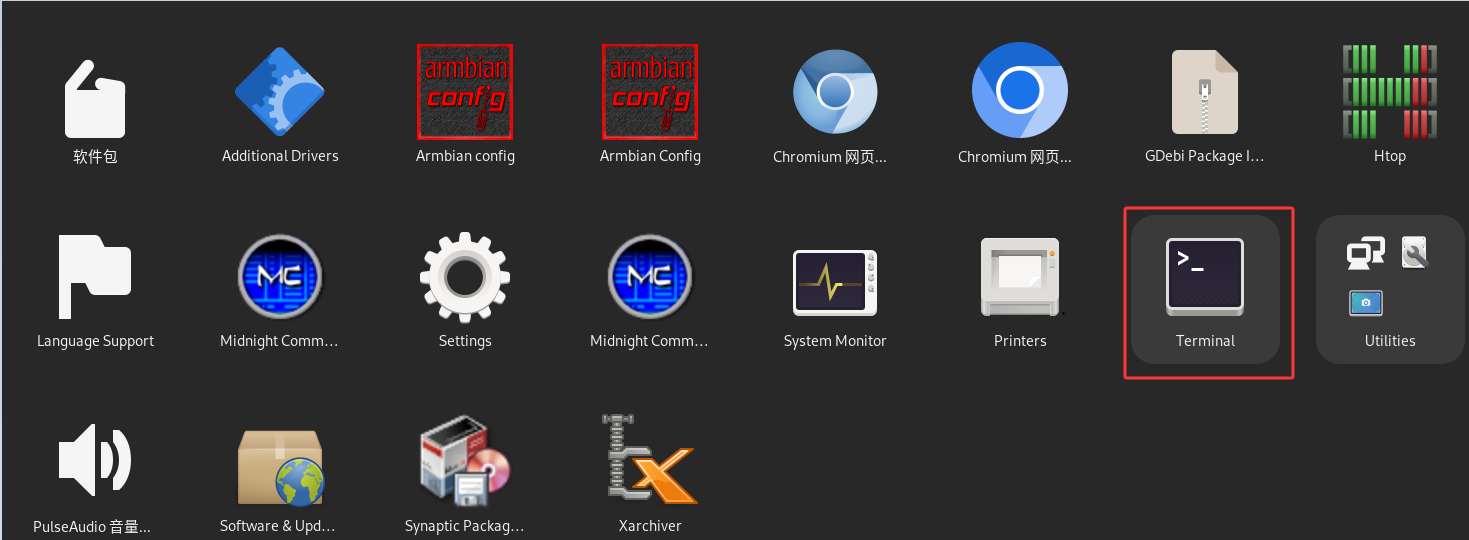
openclaw setup
openclaw onboard

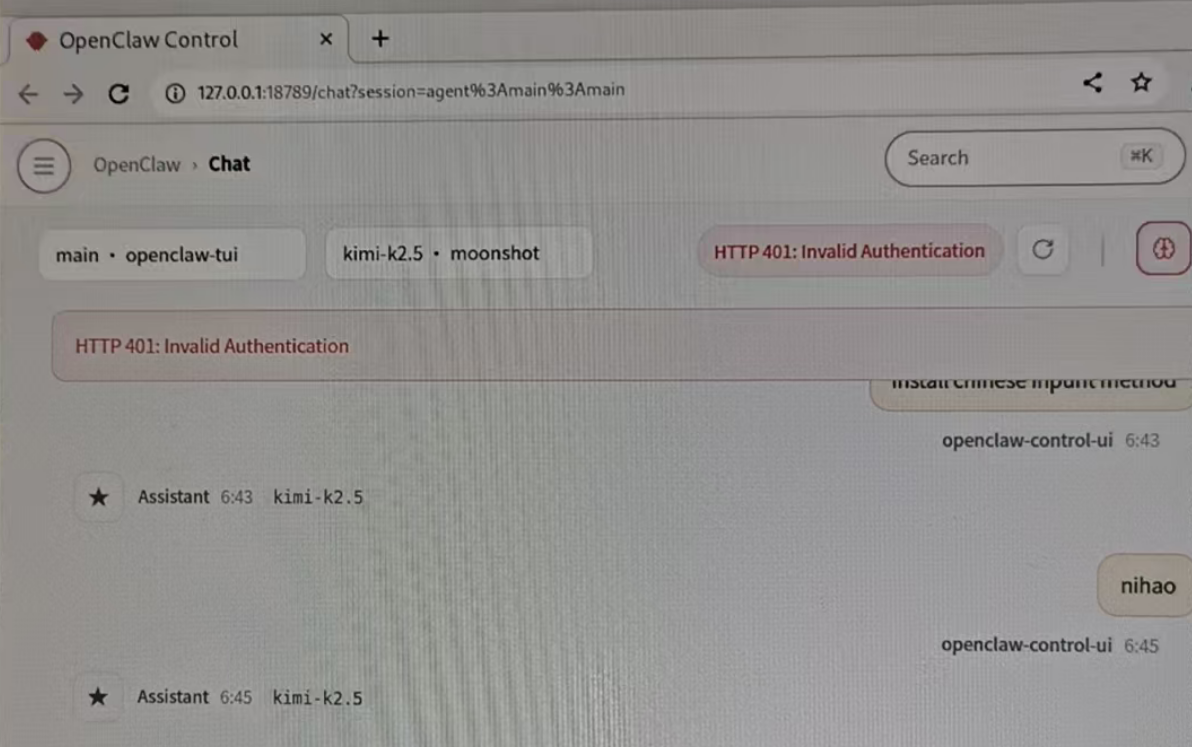
An HTTP 401 error indicates an invalid API key. Please redeploy. You can also reinstall or redeploy via SSH. Refer to Chapter 5 for SSH installation and deployment
5. Environment Setup via SSH
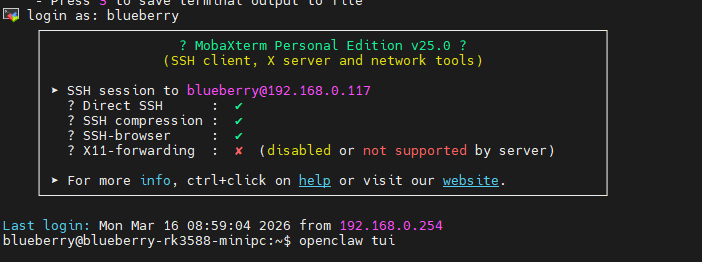
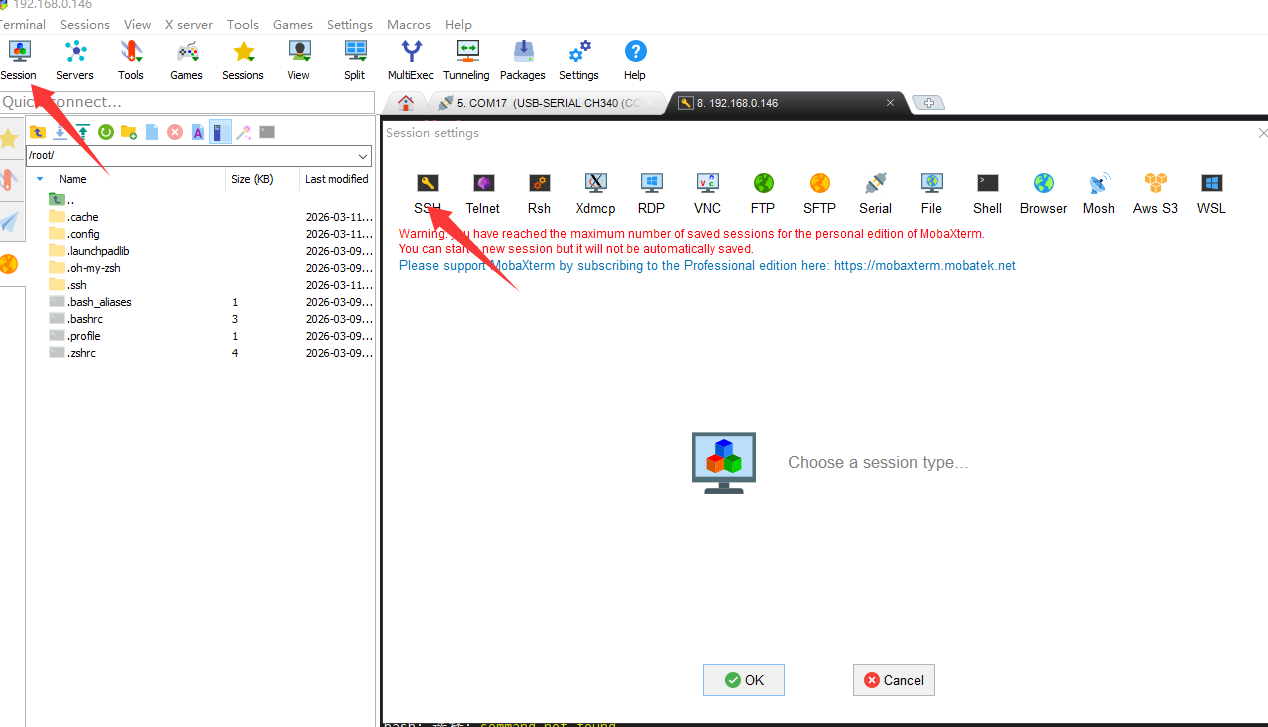
Take MobaXterm as an example.

Select SSH for the session.
Enter the IP address of the RUPA Claw device. Ensure your PC and the device are on the same network segment.
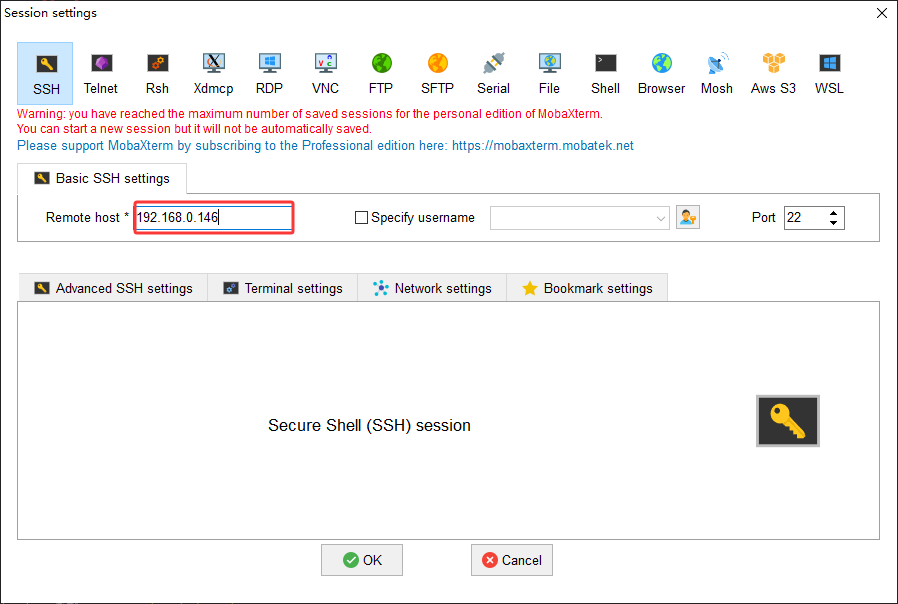
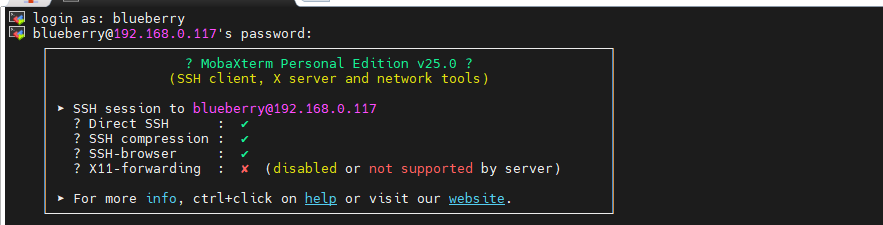
Log in with username: blueberry
Password: blueberry
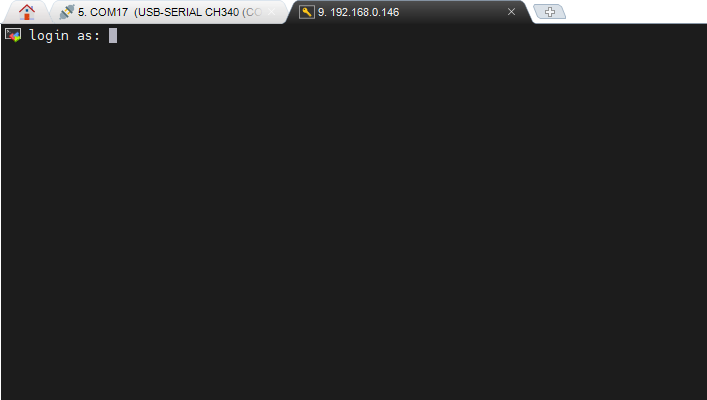
You may start deploying Openclaw on this interface.
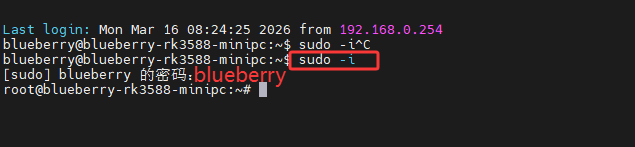
输入sudo -i
密码:blueberry
输入curl -fsSL https://openclaw.ai/install.sh | bash
The installation will start.
Refer to Chapter 3 for post-installation configuration.
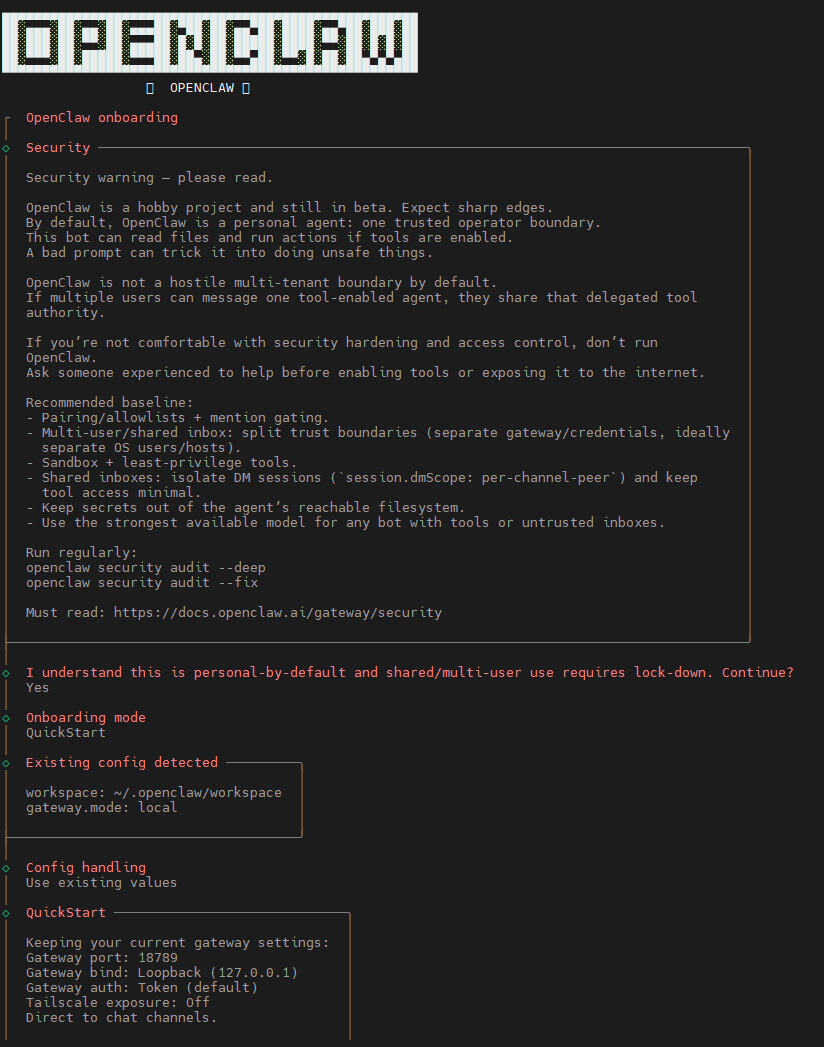
Using Openclaw in an SSH Environment
After setting up the SSH environment and installing Openclaw:
Type:
openclaw tui
to launch Openclaw.